Client Download Directions:
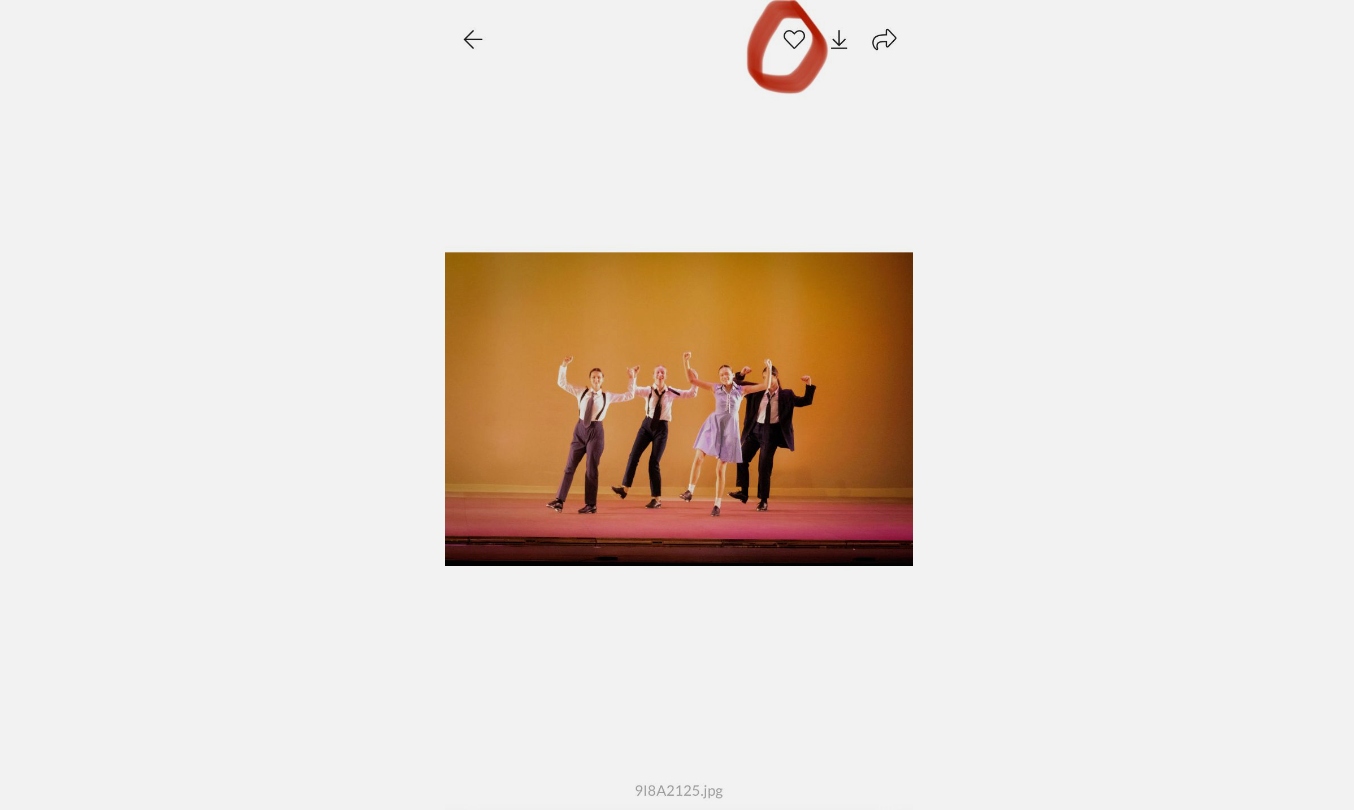
1. Heart the photo by clicking on the “♡” on the top right of a selected photograph.
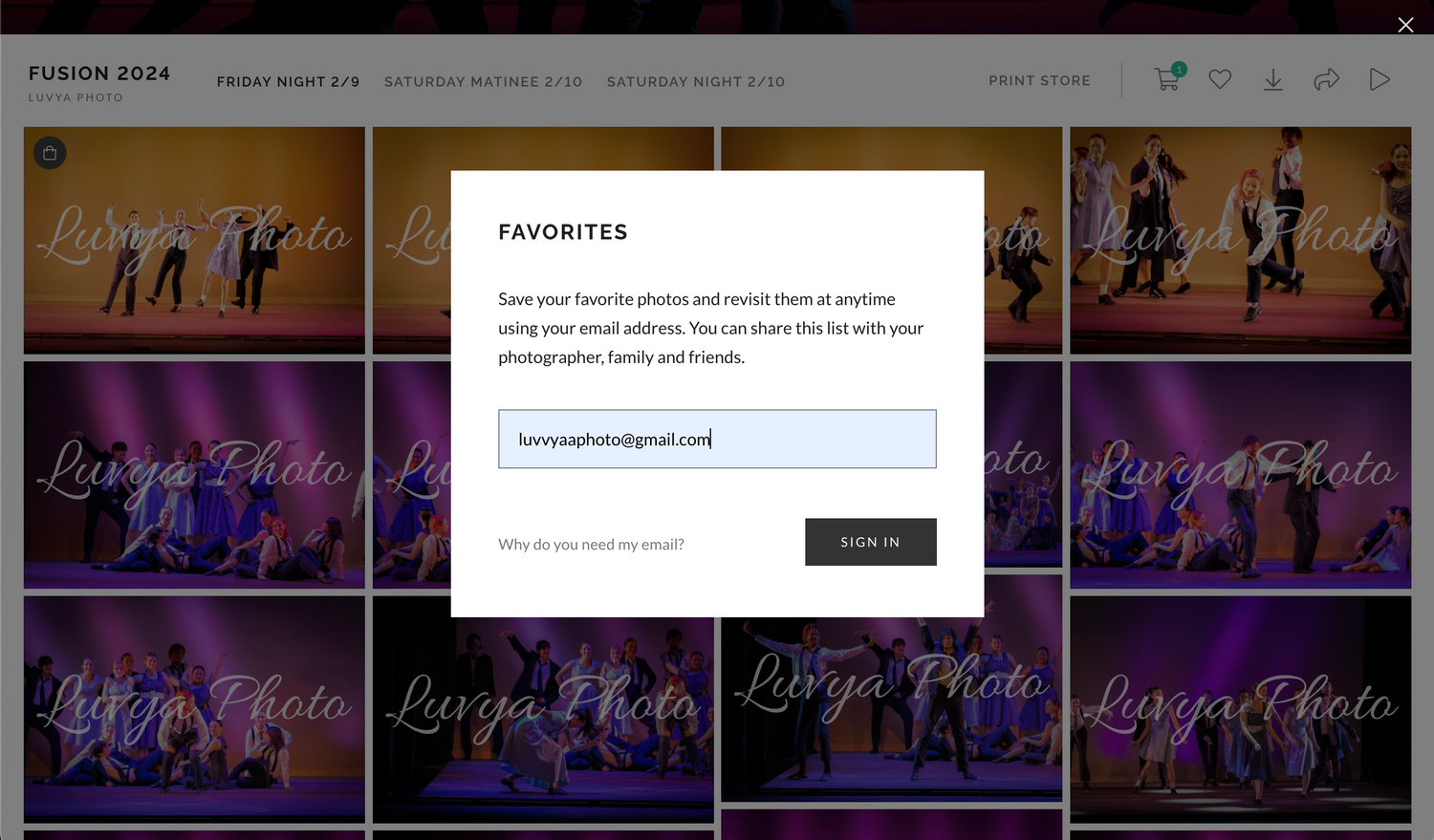
2. Enter your email address (Email can be personal or business, whichever you will check often and have access to. The program collects email addresses to create a seperate favorited album with your selected photos.)
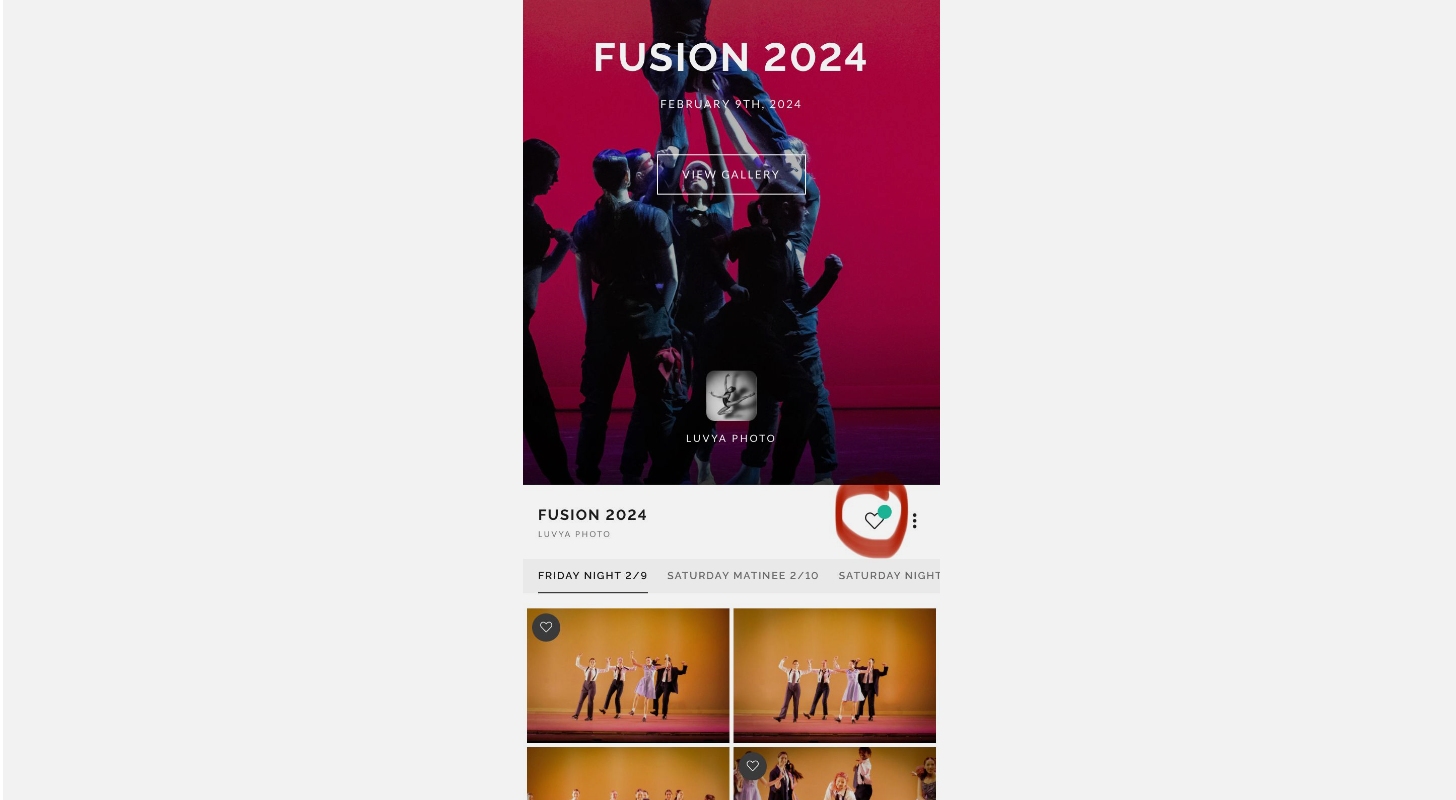
3. After you finish hearting all the photos you want to download.
Check your hearted photos by clicking the “♡” with the green dot via the main home page.
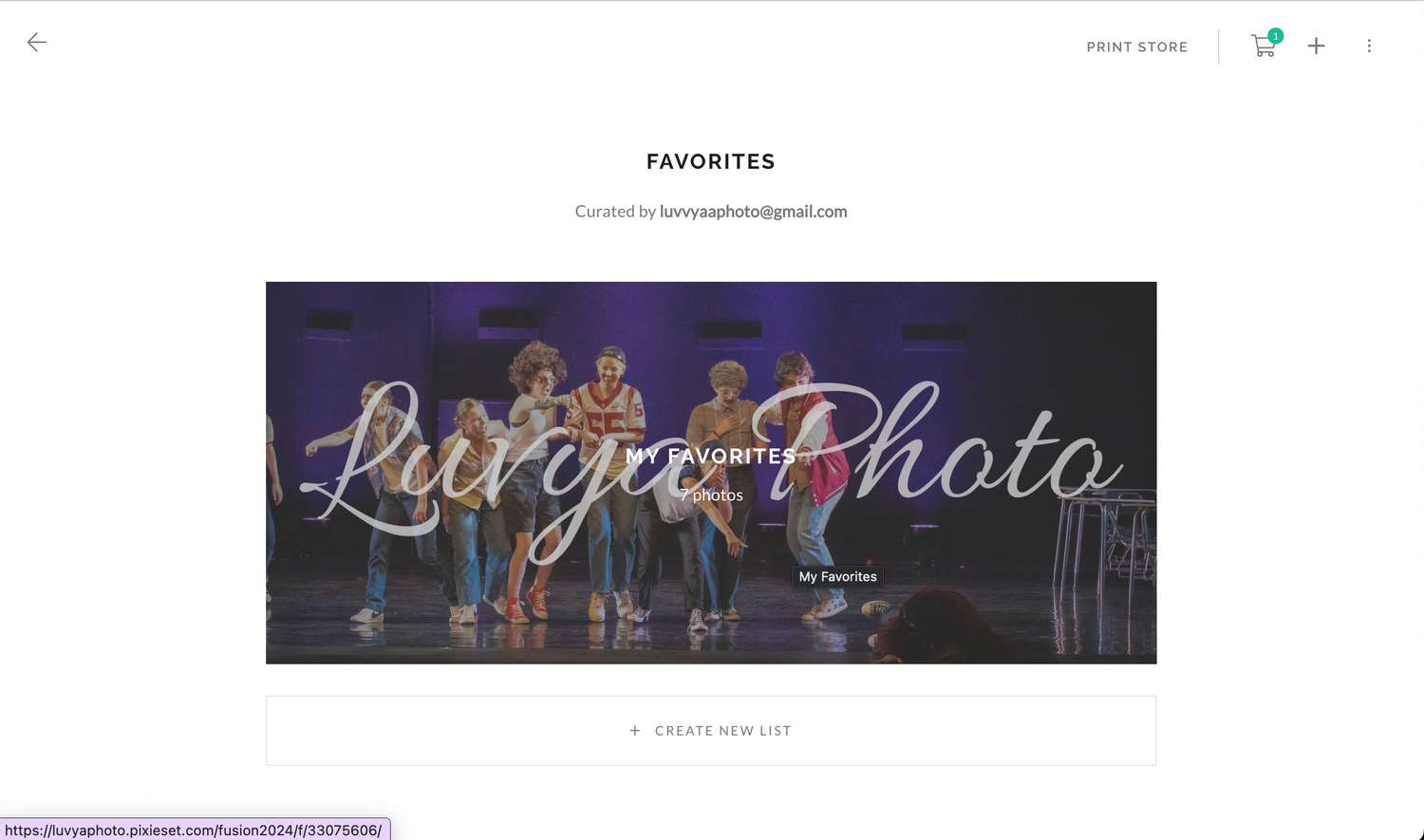
4. Click on the album of your favorited photos.
5. Click the download icon on the top right of your screen. If you are on phone, click on the three dots to access downloads.
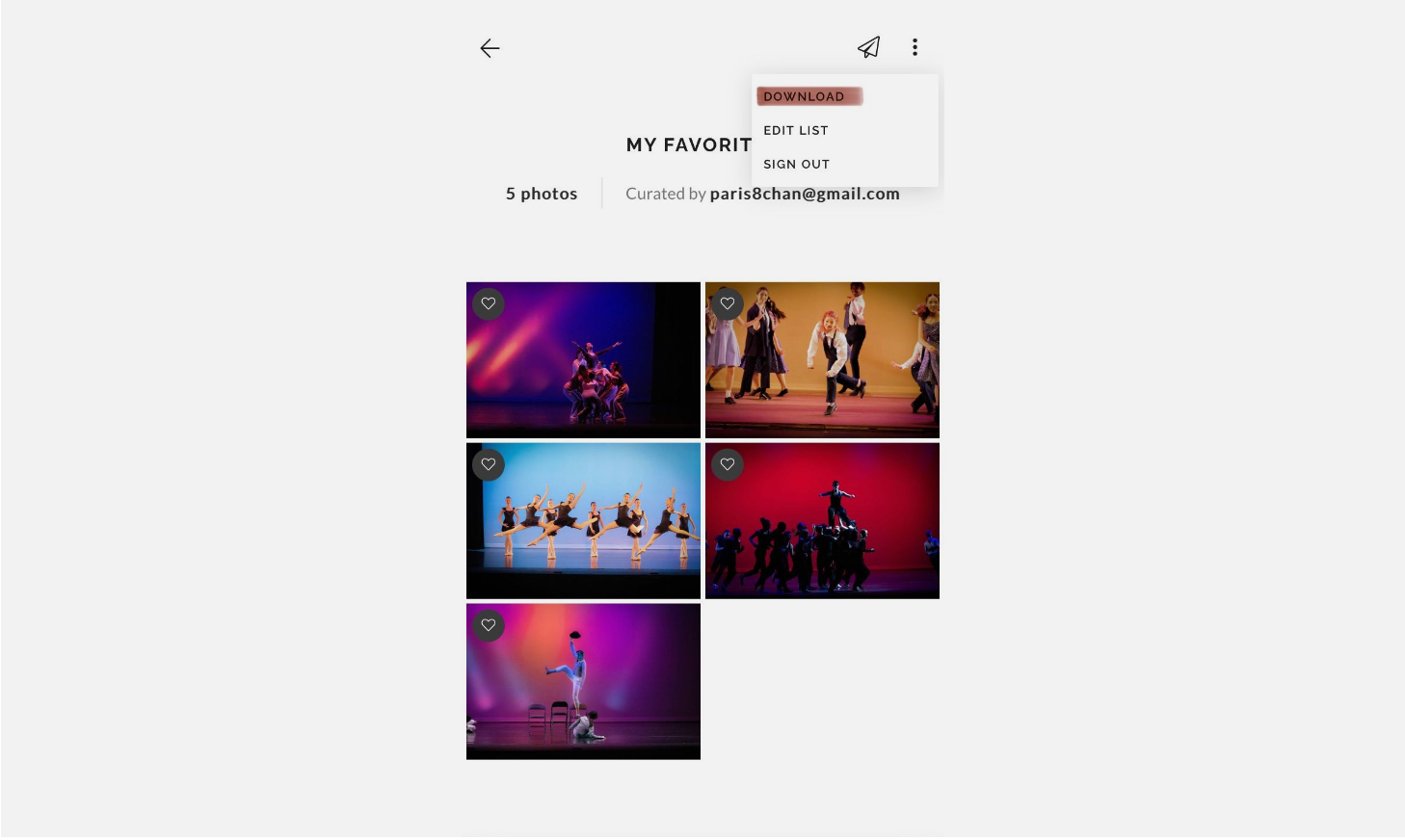
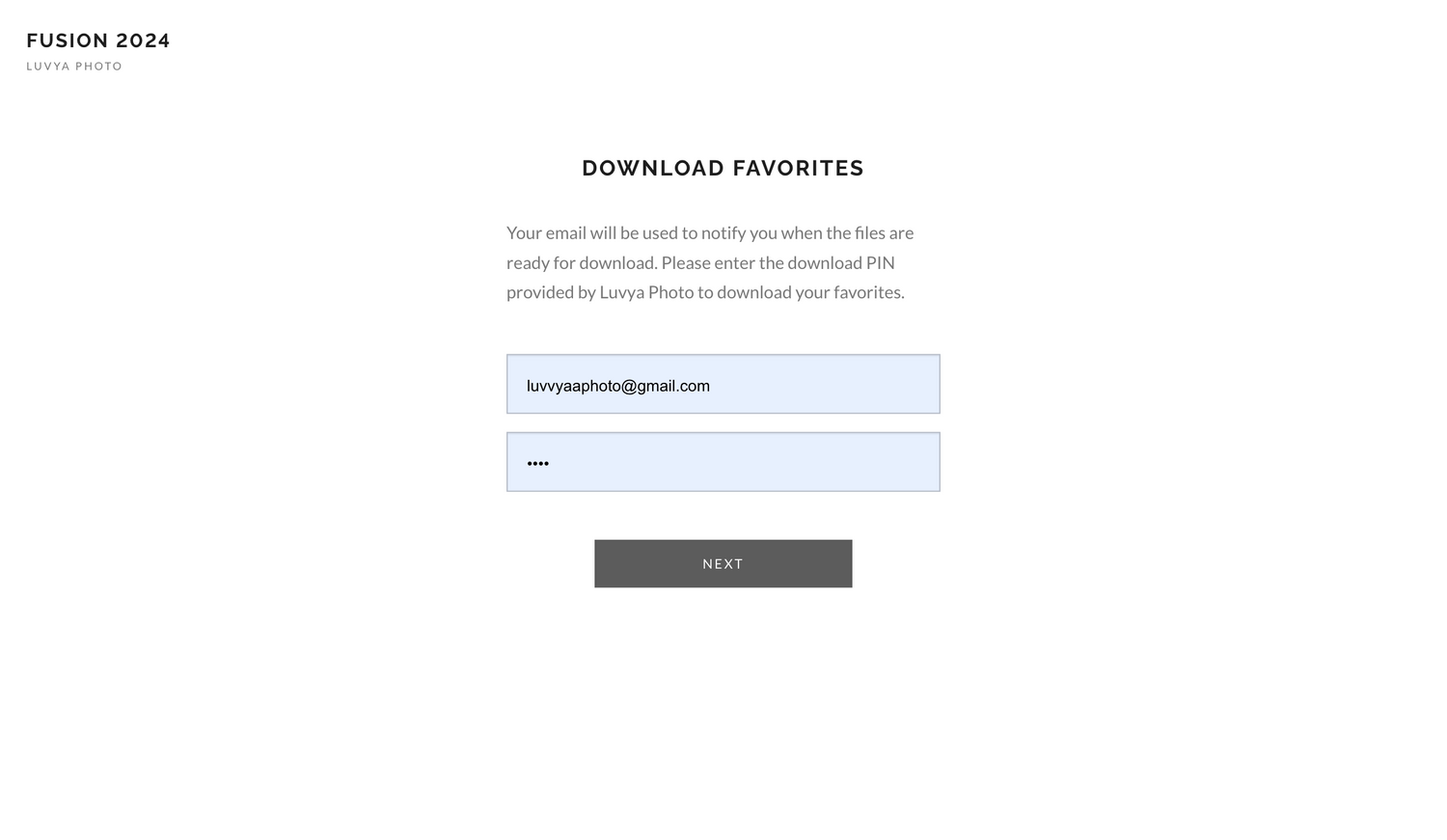
6.Enter your email again (This allows for the program to send a link to your photos via email once they are ready to download.) As well as a four digital download pin, which if you are the client it should be provided by your photographer. If you are not the specific client of the photoshoot and a pin is not provided, you have the option to purchase the digital download and prints of the photographs.
*If you would like to purchase photos, head to this page for directions on how to purchase digitals and prints. luvyaphoto.mypixieset.com/how-to-buy-digitalsprints/
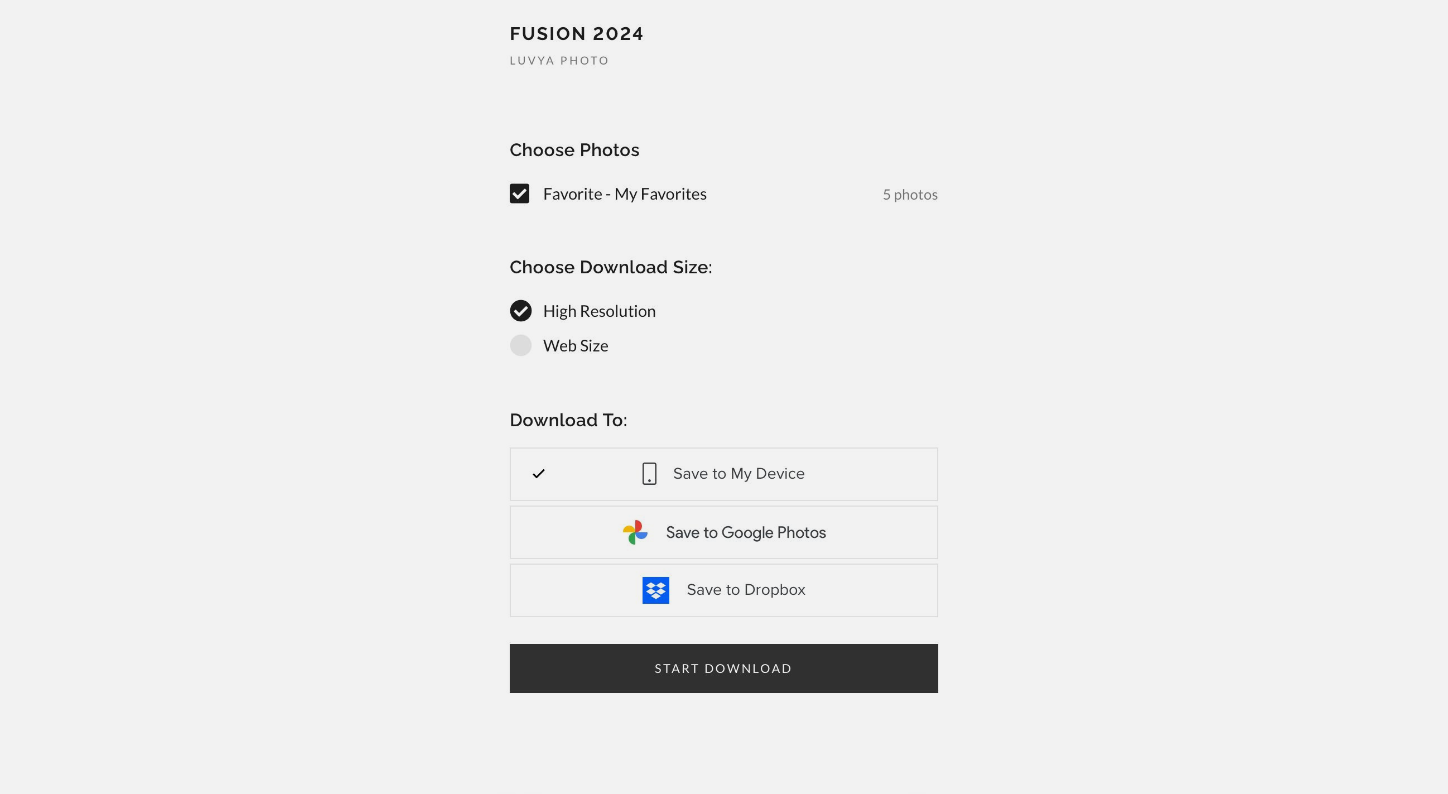
7. Select “high resolution” and download with your preferred method (I would suggest “save to device” if you are on COMPUTER or “save to google photos” if you are on PHONE.)
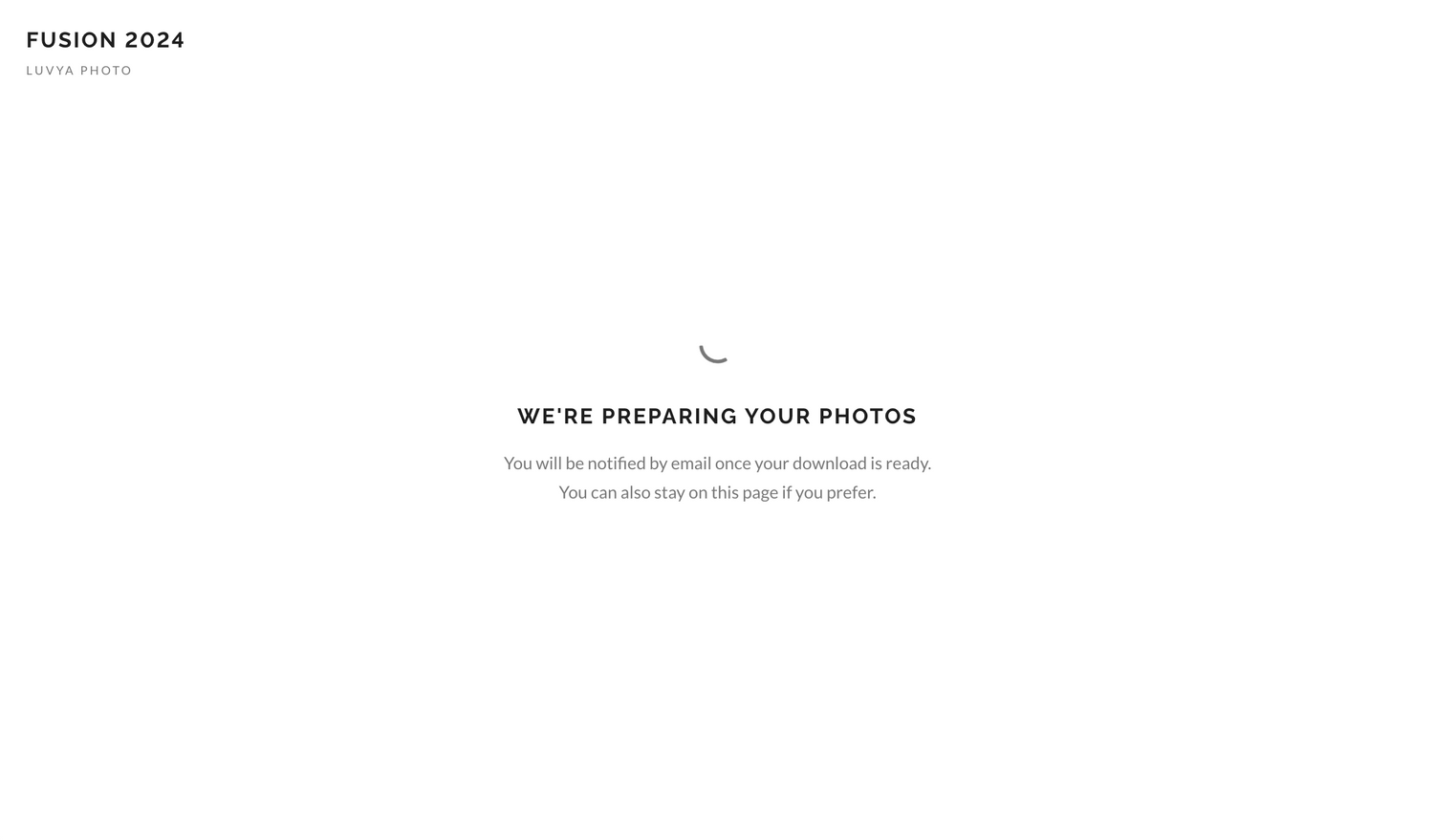
8.Stay on the page or check your email that you inputted earlier for a link of your selected downloaded photos.
Watch this video for a more guided process on batch downloading photos.
Have any other questions?
Contact luvvyaaphoto@gmail.com or @luvyaphoto on Instagram.